How to Prepare Input Images for Better AI Anime Videos
Resolution, composition and aspect ratio: a practical checklist for preparing the image you feed into WaifuRush so your animated clips come out clean.
Die Anleitungen sind auf Englisch geschrieben.
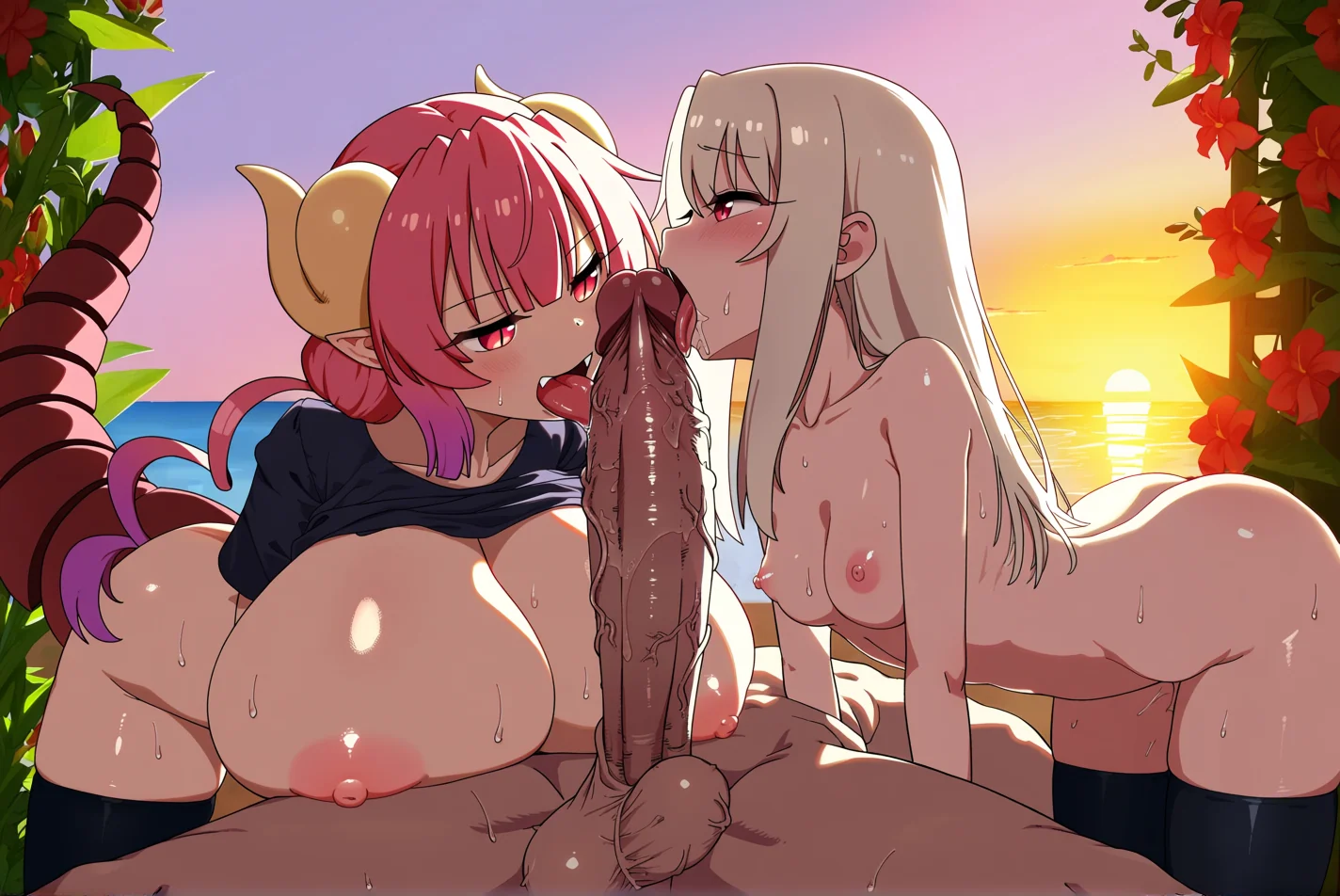
Most disappointing AI video results trace back to the input image, not the settings. The model animates exactly what you give it, including the blur, the cropped hand and the cluttered background. A few minutes of preparation before you upload usually improves a result more than any amount of rerolling.
This guide is a practical checklist for preparing the image you feed into WaifuRush: what to check on the file, how to compose the picture, and how aspect ratio decides the shape of the output.
Start with the file
- Format and size: the studio accepts images up to 25 MB. Common formats like PNG, JPEG and WebP are the safe choice.
- Resolution: use a reasonably high-resolution original. The video is generated at 480p or 720p, so you do not need a gigantic image, but a tiny or heavily upscaled one will look soft. Aim for a source whose shorter side is comfortably above the output height.
- Compression: avoid images that have been saved as JPEG several times. Blocky artifacts around lines and flat colors get animated and can shimmer.
- Sharpness: if a picture is blurry in the original, it will be blurry in the clip. Prefer the cleanest version you have.
Aspect ratio decides the video shape
WaifuRush does not ask you to pick an aspect ratio for the video. The output follows your image, using the closest of six supported ratios: 21:9, 16:9, 4:3, 1:1, 3:4 and 9:16. That has two consequences:
- If you want a vertical video for a phone, a story or a wallpaper, start from a vertical image (9:16, or 3:4 for a slightly squarer frame).
- If you want a cinematic wide clip, start from a 16:9 or 21:9 image.
An image that sits between two ratios will be matched to the nearest one, which can trim or adjust the edges slightly. If your composition is precise, crop the image to one of the supported ratios yourself, so you decide what is kept.
Matching the destination
- Phone wallpaper, stories and vertical feeds: 9:16.
- Portrait posts and profile cards: 3:4.
- Avatars and square posts: 1:1.
- Classic screens and slides: 4:3.
- Desktop, YouTube-style and presentations: 16:9.
- Ultrawide banners and cinematic shots: 21:9.
Crop to your target ratio, then bring the image to the studio.
Open the studioComposition that animates well
Make the subject clear
A single, clearly readable character is easiest. Faces, hands and the silhouette should be distinct from the background. If the character blends into a busy backdrop, the model may let parts of the background move with them.
Leave room to move
If you expect an arm to lift or hair to swing, make sure there is space in the frame for it. A subject jammed against the border has nowhere to go, so the model may crop the motion or invent edges.
Avoid cut-off hands and limbs
Parts of the body that are clipped by the frame, especially hands, are hard for the model to extend convincingly. Where possible, either show the whole hand or place it naturally out of frame.
Simplify the background
Clean backgrounds, or backgrounds with soft ambient elements like blossoms, clouds or light, animate gracefully. Dense patterns, text, logos and signage can warp.
Keep lighting coherent
A clear light direction helps the model keep shadows consistent as things move. Flat or confused lighting gives it less to hold on to.
Pose matters
- Calm poses animate most predictably, especially in the loop mode.
- Mid-action poses imply a movement the model will try to finish. That can be a great thing in the pro mode, where you control the motion with an idea or an end image, and a bad thing when you want a seamless loop.
- Faces turned toward or slightly away from the camera give the model more freedom than extreme profiles or back views.
Choose the mode for the image
The same image can behave differently depending on the mode.
- Nsfw video (loop): needs a start image with cyclical potential; calm portraits and ambient scenes.
- Nsfw video pro: accepts a start image, an end image or both; a good place to use mid-action poses and matching pairs.
- Nsfw director: continues a video, so the quality of the earlier clip matters more than a single picture.
- Live wallpaper generator: favors vertical art with space around the focal point.
Preparing a start and end pair
When you use both a start and an end image, they should be recognizably the same scene: same character, outfit, art style and background, with only the pose or expression changed. Use the same aspect ratio for both. Our guide on start and end frames covers how to plan the pair.
Planning a two-frame clip? Read the start and end frames guide.
Start and end framesDo I need to describe the image?
No. In WaifuRush you never write the model prompt. A vision model reads your image and the site writes the detailed instructions. That makes the image itself the most important part of your input; what you can see clearly in the picture is what the system can describe. An optional short idea in some modes only adds direction about the action.
A pre-flight checklist
- Is the image sharp and clean, under 25 MB?
- Is the aspect ratio one I want for the result (21:9, 16:9, 4:3, 1:1, 3:4 or 9:16)?
- Is the subject clear, with room to move?
- Are hands and limbs complete, or naturally out of frame?
- Is the background simple, or made of soft ambient elements?
- Is the pose suited to the mode I am about to use?
Run through this list once and you will avoid most of the failures that people blame on the model. And when a result still disappoints, the checklist tells you where to look first.
Rights and content
Use images you have the right to use, such as your own artwork or art you have permission to animate. Keep to the content policy linked in the site footer. For commercial use of the outputs, check what your plan allows on the pricing page rather than assuming.